Windows · x64 and Arm64
Every cloud, one Windows app
Mount your clouds as a drive letter in File Explorer and every program on the machine treats them like an internal disk — or stay in the app to watch and listen: Blu-ray disc menus, true Dolby Vision, DSD up to DSD1024, and gigabyte PDFs opened straight from the cloud.
- Mounts as a drive
- True Dolby Vision P7 FEL
- HDMV + BD-J menus
- DSD1024 · DoP
- On-device AI subtitles
Clouds
Every cloud in one place
One window for every account
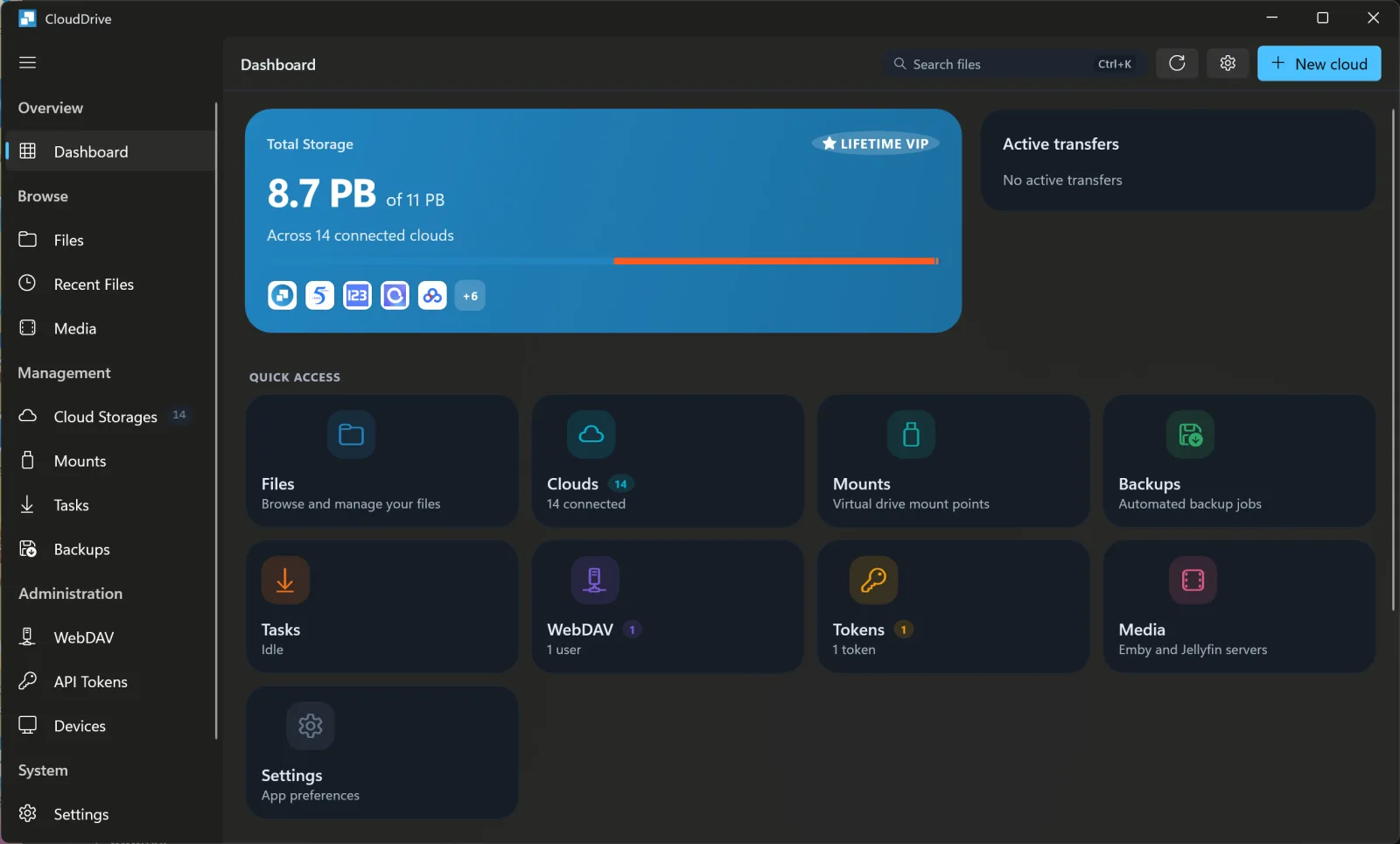
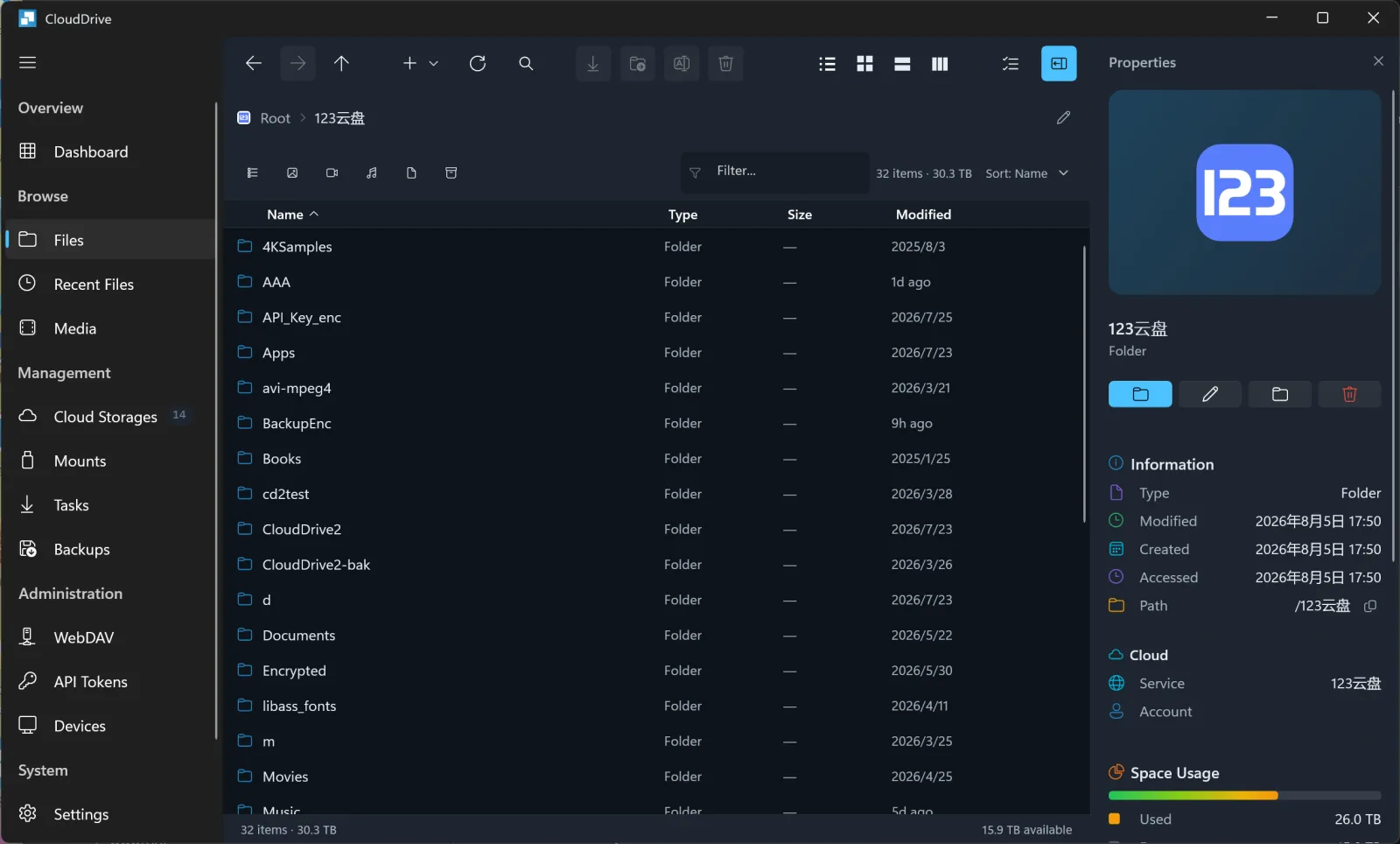
OneDrive, Google Drive, Aliyun Drive, Baidu Pan, 115, 123 Pan, Tianyi Cloud, Xunlei Cloud and GuangYa Pan, plus S3, WebDAV, SFTP, FTP, SMB and local folders — all connected in one place. List, grid and columns views, sorting, filtering and search, uploads and downloads, copy, move, rename and new folder: every one of them works across clouds rather than inside a single one.
The properties panel opens beside the list: type, modified and created times, path, which cloud a file lives on and how much space it takes.
- Cross-cloud search
- Properties inspector
- Four view modes
Local mounting
Give it a drive letter and let Windows do the rest
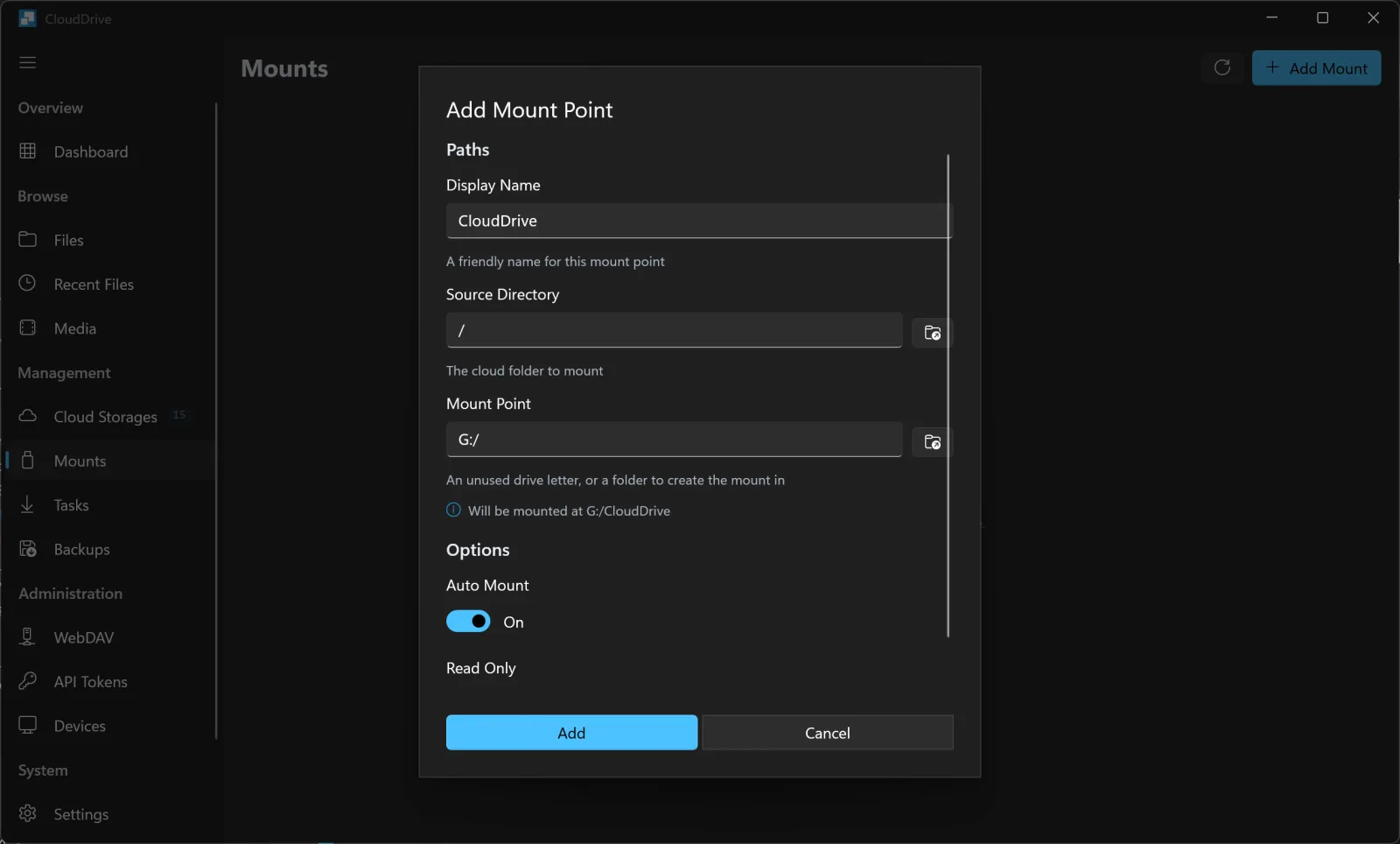
Pick a free letter and it is mounted in seconds. From then on the cloud is just a drive — File Explorer, a video editor, Office, Emby, Plex, anything reads it directly.
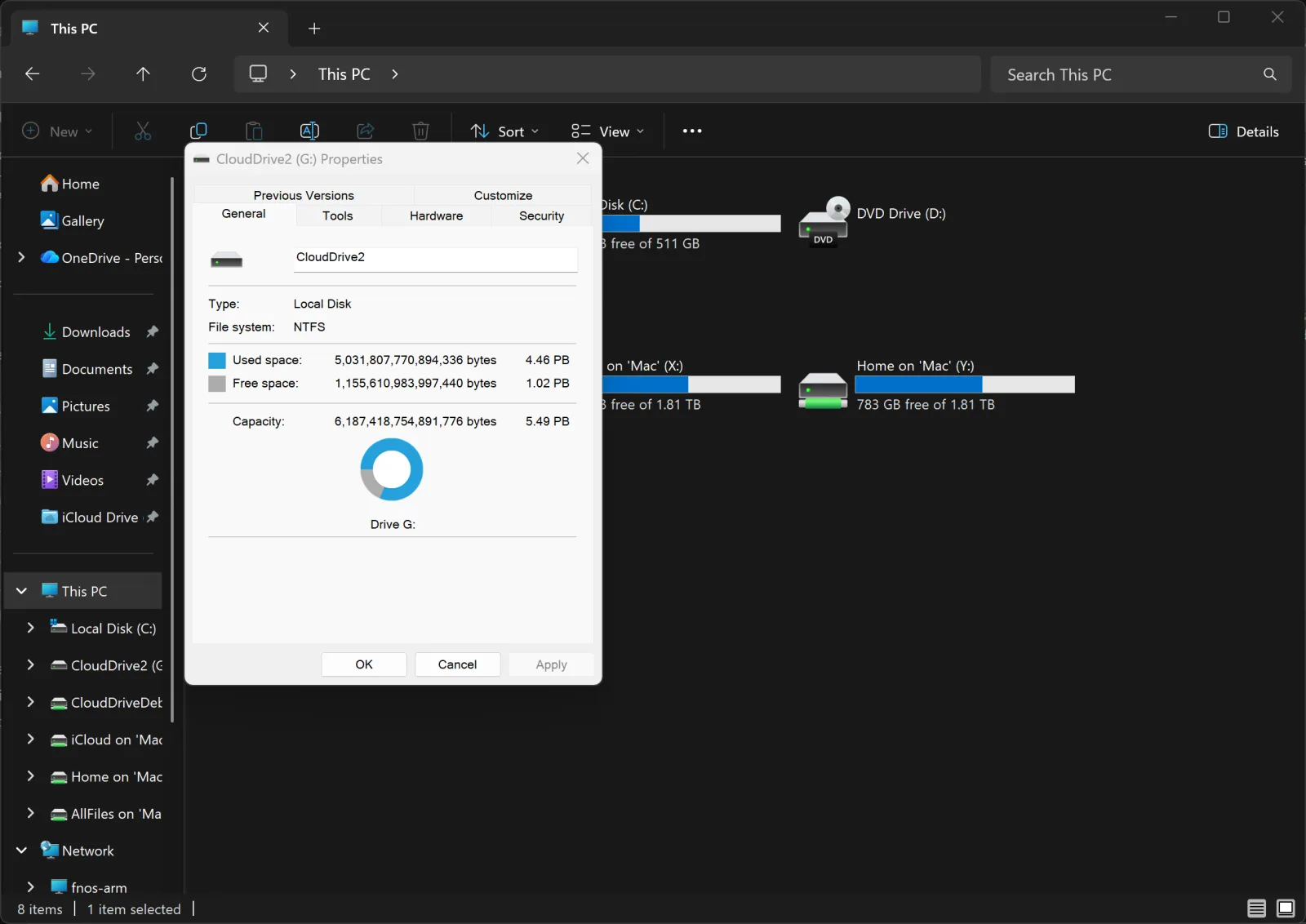
In This PC, it is a local disk
Mount to a drive letter or into an empty folder, mount automatically at startup, or mount read-only. Several clouds can be merged into one directory tree, or each given its own drive.
What you get is a real file system, not a read-only mirror: security descriptors are supported in full, so ACLs read and write normally, and writes are genuinely random — changing a stretch in the middle of a file does not mean pulling the whole thing down first. Those attributes are persisted locally, so it does not matter that the cloud cannot store them.
- Windows security descriptors
- Random writes
- Mount at startup
However Windows sees a disk, it sees this
Once mounted, the drive appears in This PC, and its properties sheet reports capacity and used space like any local disk. Command scripts, backup software and older programs that insist on a real path all carry on working.
Media
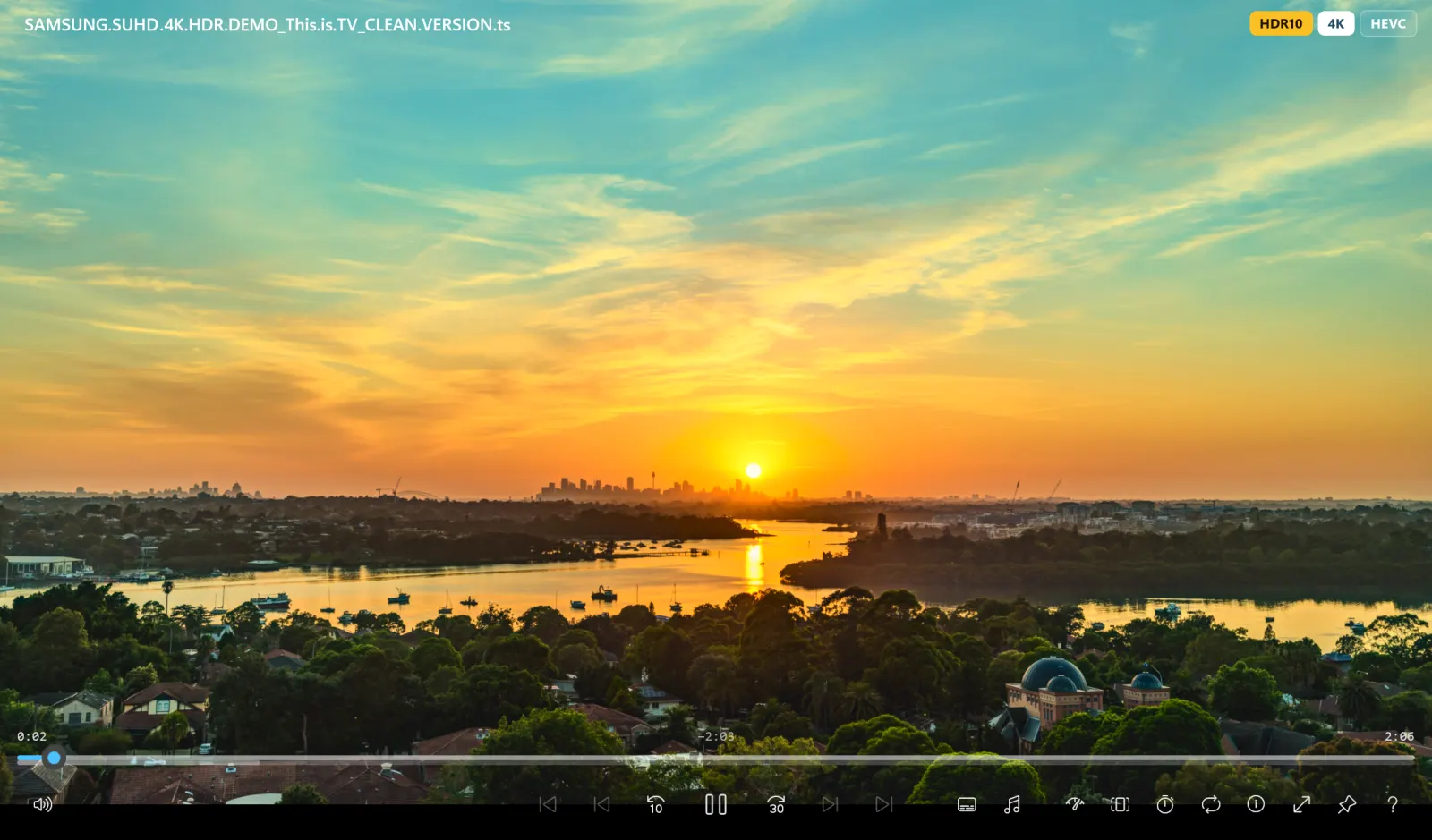
Cinema-grade playback, straight from the cloud
No dragging a forty-gigabyte disc image back down first. The player reads from the cloud as it goes, with decoding, menus, audio tracks and subtitles all intact.
The built-in player and Blu-ray ISOs
Hardware-accelerated decoding for H.264, H.265/HEVC and AV1, with HDR10, HDR10+ and Dolby Vision — including Dolby Vision playback of Profile 7 Blu-ray content, full enhancement layer (FEL) included. Blu-ray and DVD ISO images play without extraction, and both HDMV and BD-J (Java) disc menus work, with scene selection, coloured shortcut keys and in-menu audio and subtitle setup.
A Profile 7 disc carries two picture layers. CloudDrive2 reads both and composes the enhancement layer into the final picture, full enhancement layer (FEL) sources included — what you get is the complete dual-layer Dolby Vision picture, not a base-layer-only render and not an HDR10 fallback.
- HDR10 · HDR10+ · DV
- 4K · 8K · AV1
- HDMV + BD-J menus
- Blu-ray / DVD ISO
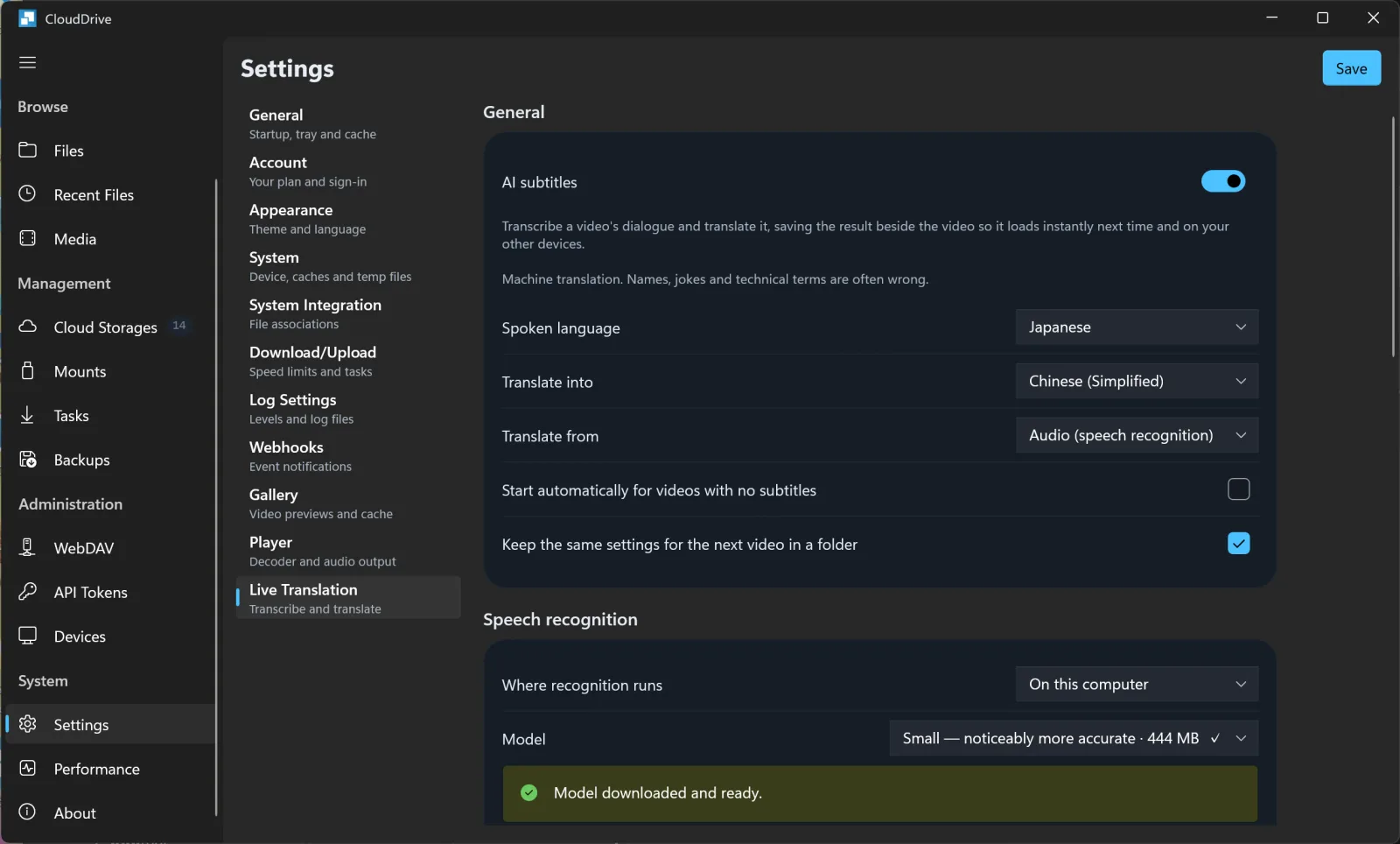
AI subtitles, recognised on this machine
Generate translated subtitles for any video: an existing subtitle track is translated where there is one, and speech recognition fills in where there is not. The recognition model is downloaded and runs on your own machine rather than sending audio away, and you can plug in your own API instead. Generated subtitles are saved next to the video, ready to reuse on your other devices.
Everything about AI subtitle translation
- On-device recognition
- Subtitles saved alongside
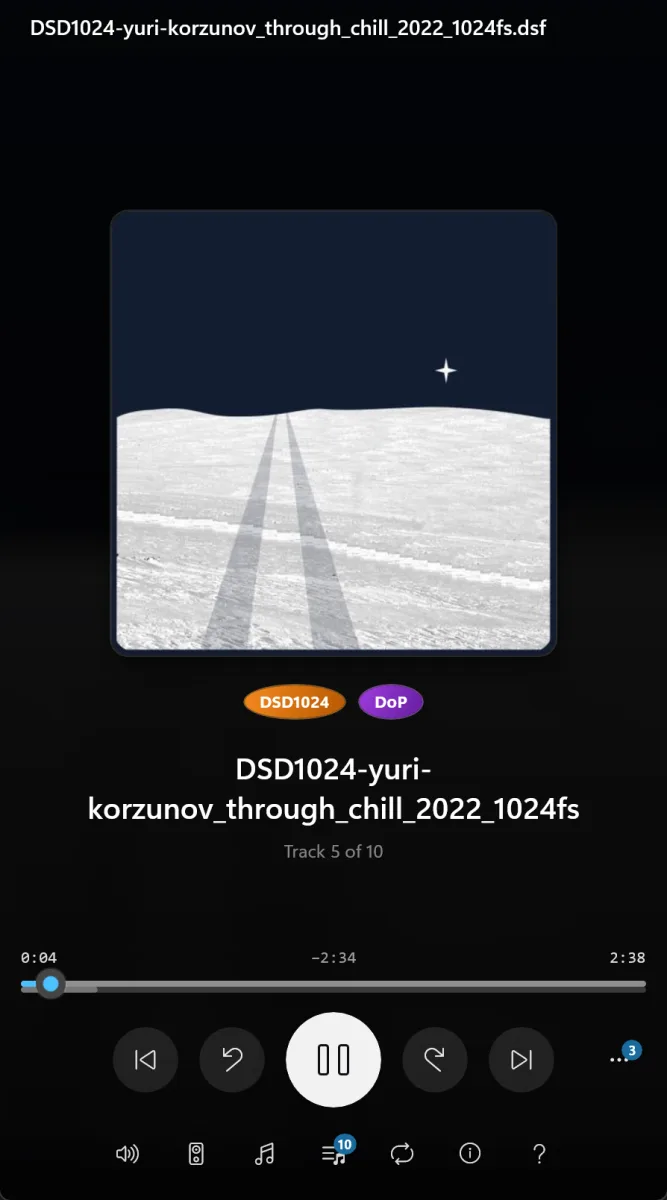
Audiophile-grade audio
DSD files (.dsf, .dff) and SACD ISO images stream straight from the cloud, up to DSD1024, with multichannel DSD in true 5.1. TrueHD, DTS-HD Master Audio and DTS decode in full, and multichannel is never folded down to stereo.
DoP output works out of the box. Install your DAC vendor's ASIO driver and native DSD becomes available too.
DSD64 through DSD1024 are all supported. How far DoP and Native DSD actually go is set by the DAC you connect — the app outputs to what the DAC itself reports, and anything beyond that is converted to PCM.
- DSD1024
- DoP output
- Native DSD (needs ASIO)
- SACD ISO
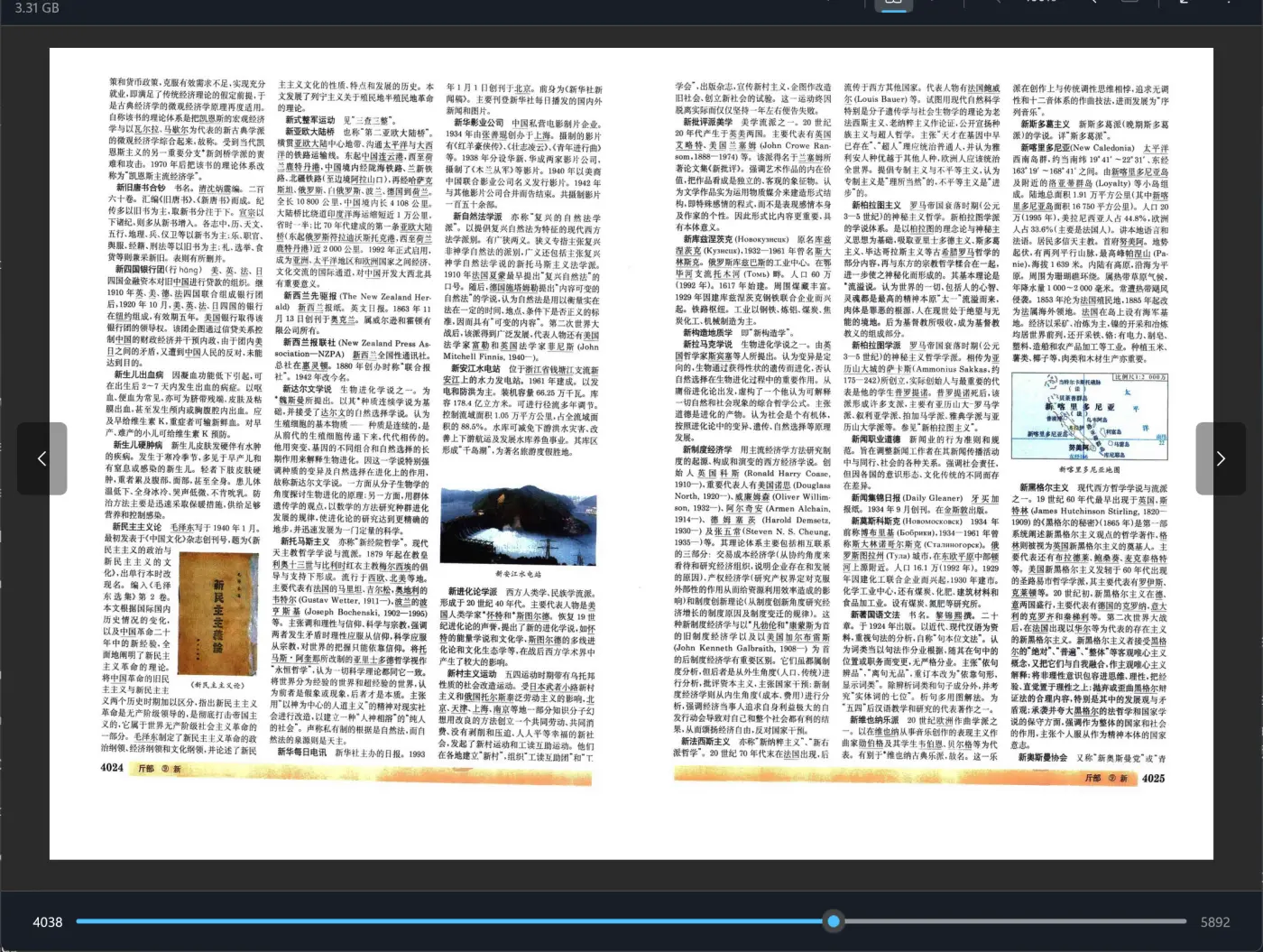
Gigabyte PDFs, open in seconds
The streaming PDF reader does not pull the whole book down. It reads only the stretch of the file the current pages need, so a several-gigabyte, several-thousand-page volume takes a few seconds from tapping it in the cloud to seeing the first page — with no complete copy left on your disk.
Paging, zooming and jumping through the outline all fetch on demand. Page thumbnails, outline navigation, bookmarks and remembering where you stopped are all there.
- Reads on demand
- Outline and thumbnails
More
The rest of what you'll use daily
Emby and Jellyfin client
Connect your own Emby or Jellyfin server, with posters, cast and Continue Watching. When this machine's CloudDrive can reach the same file, Direct Stream plays it straight from the cloud, bypassing the server transcoder, and your watch history still syncs back.
On the server side there is also an Emby and Jellyfin companion plugin: live library updates, playback-aware prefetch, and path mappings that configure themselves.
Transfers and backup
Copy or move files between any connected providers, with a transfer manager that supports pause, resume, retry, throttling and concurrency control. Backup jobs support schedules, file system monitoring and several destinations at once.
A WebDAV server of its own
This Windows machine is itself a WebDAV server: every cloud you have connected is served over a standard protocol, so third-party apps on the same network — players, file managers, backup tools — read your cloud content directly without signing in to each provider again.
Browser console
The core also serves a web console. Open
http://localhost:19798in a browser to manage it, or reach it from another machine on your network — for that, Windows Firewall has to allow the port first.Security
Two-factor authentication, encrypted folders, scoped API tokens and session monitoring protect your data.
And these
A disk cache with configurable eviction, gallery and image viewing, tray residency and start at login, dark and light themes, English and Chinese interfaces, and native builds for x64 and Arm64.
Getting it
Installing
Download the installer from this site and follow the prompts. What mounting needs is included in the installer; there is nothing to prepare separately.
The core service registers as a Windows system service, starts with the machine and runs whether or not anyone is logged in; the app is an ordinary application that starts with your account. They listen on different ports — 19798 for the core (plus 19799 if you enable HTTPS) and 29798 for the app. To reach either from another machine, Windows Firewall has to allow that port.
The installer, the service and the WinFSP driver are all code-signed, and some antivirus products still block one of them — the service will not start, the mounted drive never appears, or the app is closed outright. Add CloudDrive2's install directory and WinFSP to the allowlist; more on the help page.
The Windows build and the macOS build downloaded from this site carry the same feature set: cloud management, local mounting, media playback, AI subtitles, WebDAV and backup. The Mac App Store build is sandboxed and has no local mounting; see CloudDrive2 for macOS for what differs.
Browsing clouds, managing files and basic playback need no extra purchase. The advanced playback features — HDR and Dolby Vision, DSD, ISO disc playback (Blu-ray, DVD and SACD), AI subtitle translation and the media client (Emby and Jellyfin) — need the one-time App Pro in-app purchase.
App Pro is tied to your CloudDrive account, not to a device or a store. Buy it once and it is unlocked wherever you sign in with that account — Windows, Apple devices, Android and Meta Quest alike. See plans and pricing.
Everything on this page is what the app does today. CloudDrive2 is under active development, and what cloud providers and platforms allow changes too, so features can change or be withdrawn without notice.
Feature requests and bug reports are genuinely welcome — they are how the next release gets decided. Best filed as GitHub issues, where they stay on the record; you can also write to waytechcloudfs@gmail.com or join the Telegram group.