On every platform
Core features
Managing every cloud account from one interface, cross-cloud copying, encryption, backup and WebDAV. This is the background service you install on a computer, NAS or Docker host, and it is also built into every platform app in full — phones, TVs and headsets need no server of their own. Only local mounting depends on the platform.
- Mount as local disks
- One place for every cloud
- Sign in once
- WebDAV service
- Sharing by API token
- Cross-cloud copying
- Change notifications
- Encrypted filesystem
- Access control
- Fair to providers
- Multi-cloud backup
The core here is CloudDrive2 Core — the original CloudDrive2, still under active development.
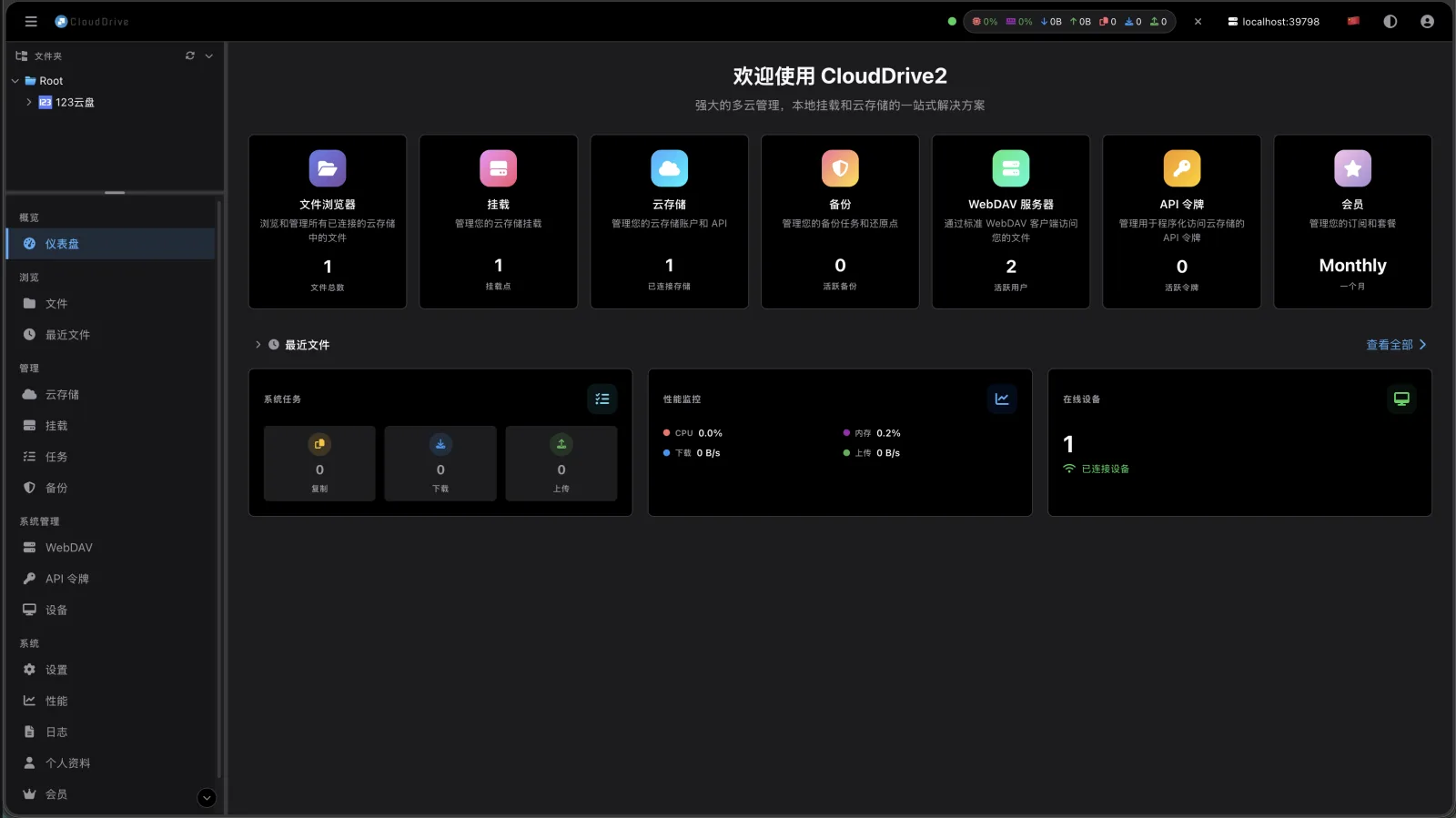
Mounting
Mount clouds as local disks
CloudDrive2 mounts a cloud drive — or any single folder inside one — as a local disk, much like plugging a USB stick into your computer. Once mounted, cloud files open, edit and save directly. Nothing has to be downloaded first.
You can mount one cloud on its own, or combine several clouds into a single unified filesystem. Moving files between providers then stops meaning opening several apps.
More importantly, mounted drives support full random read and write. Any local program can use them the way it uses an internal disk: an office application saves a document straight back to the cloud, a media player seeks through a file without pulling the whole thing down.
- Full random read/write
- Multi-threaded reads
- One mount, many clouds
How many mount points you get depends on your tier: Basic membership allows 1 local mount, Core membership and every Lifetime tier are unlimited. See pricing.
-
Multi-threaded reads
Reads use multi-threaded downloading, which multiplies throughput. With enough bandwidth, a mounted cloud feels close to a local disk.
-
A sync channel into the bargain
The mount is also a straightforward way to keep devices in step. Edit a file on one machine and the change goes back to the cloud; open it on another and you get the current version, with no wondering which copy is newer.
A real file system, not a read-only mirror
Most tools that mount cloud storage locally give you a view you can browse and copy from:
attributes are fixed values chosen at mount time, chmod will not stick, and
extended attributes are not supported at all. Writing is more limited still — with the
default settings, appending a single line to a file already in the cloud fails outright.
Making it work means turning on a local disk cache, and the cache has a price: the whole
file has to come back down before it can be changed. CloudDrive2's mount is not that.
On Linux and macOS the mount is a complete POSIX file system: permission bits, owner and group, all three timestamps and extended attributes (xattr). On Windows, security descriptors are supported in full, so ACLs read and write normally. Cloud storage cannot hold any of this itself, so CloudDrive2 persists it locally — set it once and it is still there after a restart.
Writes are genuinely random. Object storage can only replace a whole object, since an upload has to carry the file's hash, so a change still produces a new object. The difference is that CloudDrive2 never downloads the original to build it: it streams the untouched ranges straight from the cloud, splices in what you wrote locally, and uploads the result. Changing a few bytes in the middle of a 40 GB file does not begin with an hour of downloading.
As far as we know, CloudDrive2 is the only cloud mount that does both.
- Full POSIX semantics
- Extended attributes
- Windows security descriptors
- Random writes
-
Permissions and ownership
Permission bits, owner and group are real.
chmodandchownstick instead of being quietly dropped — the attributes are persisted locally, so they do not depend on the cloud being able to store them. -
Extended attributes
Anything that leans on xattr keeps working — Finder tags on macOS, backup tool metadata, tagging utilities of every kind.
-
Windows ACLs
Security descriptors are preserved in full, so permissions behave as expected on domain-joined and multi-user machines.
-
Edit without downloading first
Database files, editing projects and disk images are written in place, with no need to pull tens of gigabytes back down before you can change them.
Reads stream straight from the cloud. Scrub a player's timeline, or have a program read a few bytes from the middle of a file, and CloudDrive2 fetches just that range — nothing is written to your disk and nothing accumulates there. If you do want a folder's contents cached locally for repeated reads, turn on its folder disk cache: a per-folder setting, off by default, which subfolders can inherit.
Writes work the other way round and do have to land. A cloud upload has to carry the file's hash, and the hash cannot be computed until the file is complete, so data written to a mounted drive goes into a local temporary directory first and is uploaded once it is whole. The temporary file is deleted the moment the upload succeeds. So copying a 50 GB file onto a mounted drive needs 50 GB free wherever that temporary directory lives — you can move it in settings.
Presenting a cloud as a disk in the system file system needs the operating system to allow it.
Can mount: Windows; the macOS build downloaded from this site (with macFUSE); Linux / NAS / Docker; Android on a rooted device.
Cannot mount: the Mac App Store build (it runs fully sandboxed); iPhone and iPad,
Apple TV, Vision Pro and Meta Quest (a platform restriction); Android without root; and Linux
running as a non-root user without user_allow_other enabled in
/etc/fuse.conf — that last one is a configuration change away, described on the
help page.
Everything else on this page works the same on all of them. On iPhone, iPad and Vision Pro the File Provider extension puts your clouds inside the system Files app; on Android, the Storage Access Framework (SAF) lets other apps browse and open your cloud files straight from the system file picker.
Management
One place for every cloud
CloudDrive2 ships with a web management interface where every file operation on every cloud happens: browsing folders, viewing images, playing video and audio in the browser, and creating folders, renaming, deleting, moving files and uploading local ones. No switching between each provider's own app.
Media in the web interface can also be handed to a third-party player, including PotPlayer, VLC Player, Infuse, iina and nPlayer.
- Cross-cloud file operations
- In-browser playback
- Third-party players
How many clouds you can add depends on your tier: Basic membership allows 2, Core membership and every Lifetime tier are unlimited. See pricing.
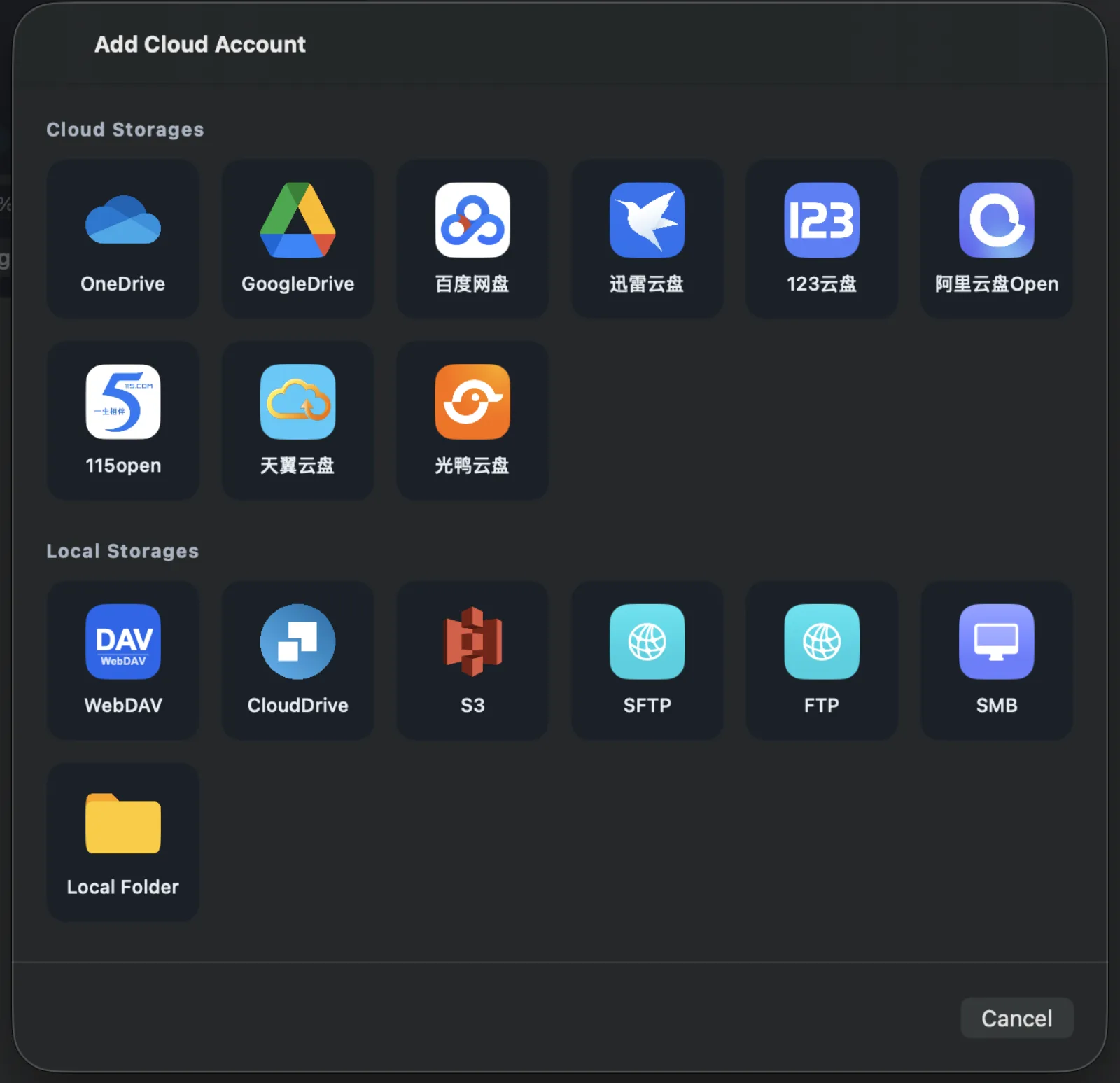
Storage supported today
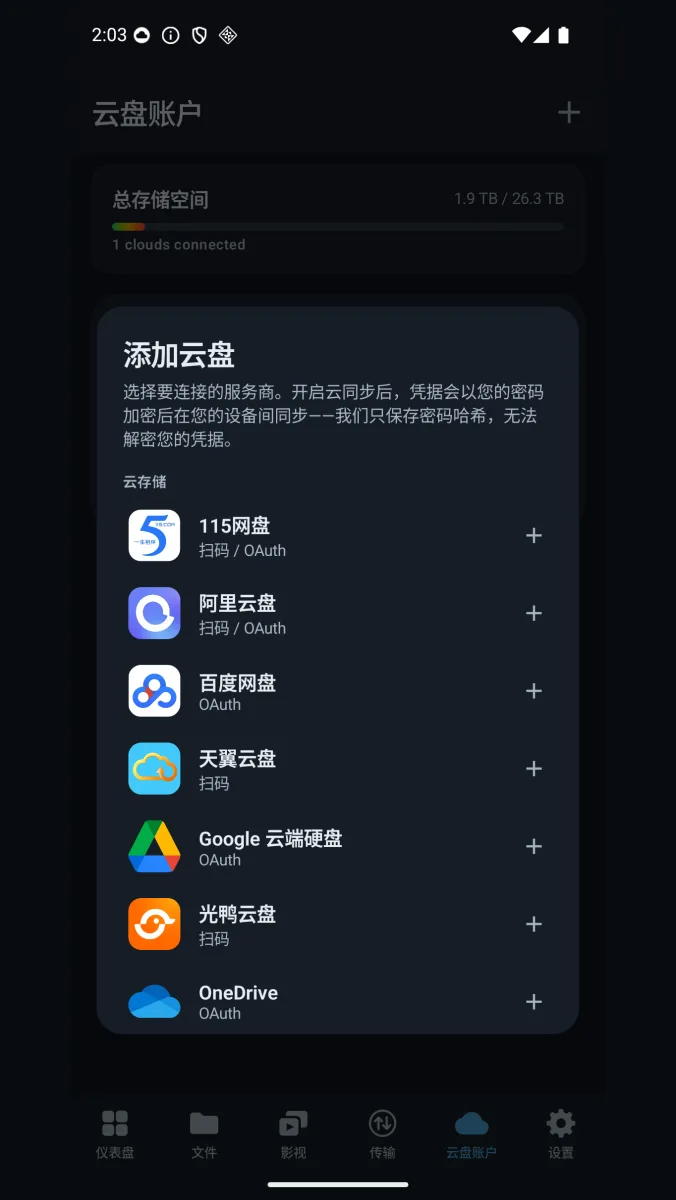
These are every option in the Add Cloud Storage dialog, grouped the way the app groups them.
Cloud drives
| Service | Website |
|---|---|
 OneDrive OneDrive |
onedrive.live.com |
 Google Drive Google Drive |
drive.google.com |
 Baidu Pan Baidu Pan |
pan.baidu.com |
 Xunlei Cloud Xunlei Cloud |
pan.xunlei.com |
 123 Pan 123 Pan |
www.123pan.com |
 Aliyun Drive Open Aliyun Drive Open |
www.aliyundrive.com |
 115 open 115 open |
www.115.com |
 Tianyi Cloud Tianyi Cloud |
cloud.189.cn |
 GuangYa Pan GuangYa Pan |
www.guangyapan.com |
Local and protocol storage
| Type | What it covers |
|---|---|
 WebDAV WebDAV |
Any standard WebDAV service, Nextcloud and Seafile included |
 CloudDrive CloudDrive |
Another CloudDrive, bringing in the clouds connected wherever it runs |
| S3 | Amazon S3 and S3-compatible object storage |
| SFTP | Any standard SFTP server |
| FTP | Any standard FTP server |
| SMB | SMB/CIFS shares — NAS boxes and Windows shares on your network |
| Local folder | A directory on this machine, managed and backed up alongside the clouds |
Accounts
Sign in once, use anywhere
CloudDrive2 can sync your cloud accounts through your CloudDrive account. Sign in to your cloud providers once, in one place, and every other CloudDrive2 installation you own can use those accounts without repeating the login.
If you move between machines a lot this saves more than time: the fewer places you type a cloud password, the fewer places it can leak. The computer at home, the one at work and the NAS all use the same already-authorised accounts.
When cloud account details are synced, they are encrypted with your own password before they are uploaded. Our server does not store that password — only a hash of it, used to verify sign-in. The server therefore has no key to decrypt with, and the cloud account details held there cannot be read by anyone.
How many devices may be online at once depends on your tier: 2 on Basic membership, 5 on every other. That limit is not enforced yet. See pricing.
Protocol
WebDAV service
WebDAV is a file transfer protocol built on HTTP. It lets you reach and manage remote files as if they were local, which is why cloud drives, storage services and NAS boxes all speak it.
Its main strength is compatibility. Windows, macOS and Linux support WebDAV out of the box, as do applications such as Microsoft Office and Adobe Creative Suite. Sharing files between devices needs no special client.
CloudDrive2 wraps all of your clouds into a single unified WebDAV service, so any WebDAV-capable client can browse and manage every one of your cloud files through it.
Every platform carries that server. The app on a phone, tablet, computer, TV or headset can each switch it on and feed the clouds it has connected to third-party apps on the same network.
Full control over the WebDAV service
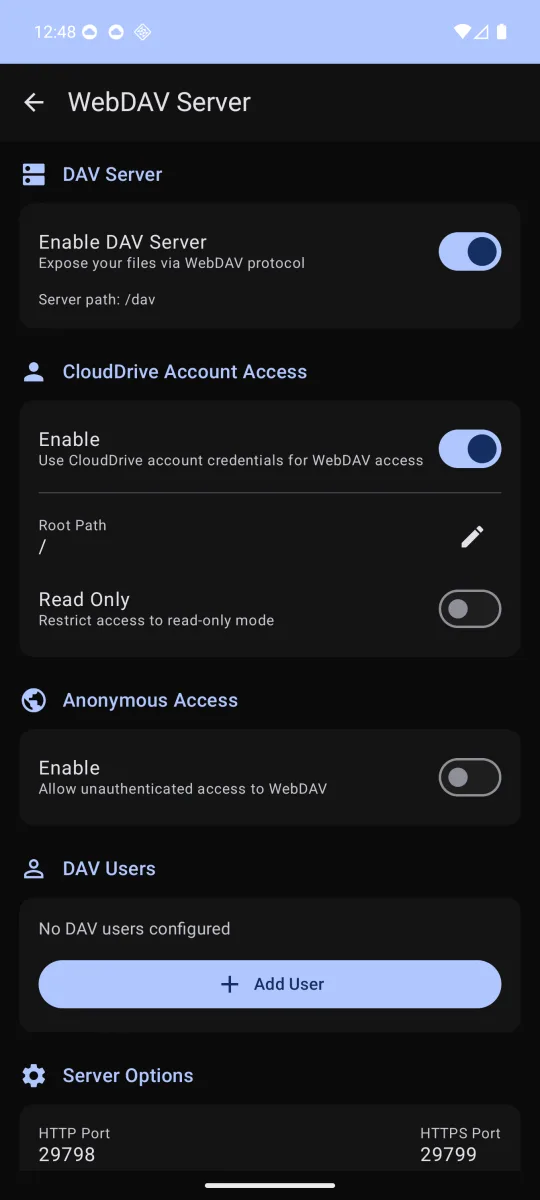
Every part of the WebDAV service is configurable from the system settings screen:
-
Service control
Turn the CloudDrive2 WebDAV service on or off at any time.
-
Account access
Allow or deny access using your CloudDrive account, and set the root directory that account sees along with whether it is read-only.
-
Anonymous access
Allow or deny anonymous access, with its own separate root directory and its own permissions.
Independent WebDAV users
You can create any number of independent WebDAV users, each with its own root directory and its own read-only setting. Sharing one folder with someone no longer means handing over your account.
Creating independent WebDAV users is a membership feature: the Monthly, Yearly, Lifetime Lite and Lifetime plans all include it, the free Basic plan does not. See plans and pricing for what each plan covers.
Sharing
Hand a whole CloudDrive over with an API token
Create an API token on a CloudDrive2, and any client that speaks the CloudDrive API can connect to it with just the address and that token. Another CloudDrive2 is one such client — the entry called CloudDrive in its Add Cloud Storage list. Third-party software goes through the same open gRPC API, and gets exactly as much.
Once connected, every cloud on that machine looks like an ordinary cloud storage to the client: browsing, playback, copying and backup all take the same path as a directly connected cloud.
What differs is how far the resemblance goes. WebDAV is a universal protocol, and the price of that is that only the file survives the trip — list a directory, read and write bytes, and there it ends. Over a CloudDrive token both ends speak the same language, so a cloud's capabilities come through intact.
- Thumbnails and previews
- Search on the cloud
- Offline downloads
- Rapid upload
- Real capacity
- Direct links
- Per-operation permissions and expiry
-
Thumbnail and preview URLs
The URLs the remote cloud provides are passed through as they are, so gallery and waterfall views still show images without pulling the original file down for each one.
-
Search happens on the cloud
The query is forwarded to the remote machine, which hands it to each provider's own search. Finding one name among hundreds of thousands of files does not mean walking the directory tree.
-
Offline downloads still work
Magnet links and torrent files still go to the remote cloud to fetch, and adding, watching and clearing those tasks all happen from here.
-
Hashes travel, so rapid upload can happen
File hashes come across too, so copying into this cloud storage can still hit an instant server-side copy. WebDAV has no notion of a hash, so every copy there moves every byte.
-
Capacity that is real
Total, used and free are read from the remote side rather than filled in with a placeholder — so once mounted, the free space your system reports is the true one.
-
Direct links skip the relay
With it enabled, this machine gets the provider's own download URL and the data stops passing through the remote machine on its way.
-
Granted item by item, and it can expire
More capability does not mean handing over all of it. Each token gets its own root directory, its own expiry, and its own answer for every class of operation — read, write, modify, system, cloud storage, account. A WebDAV user can only be given a root directory and read-only, and never expires.
Against WebDAV
| Capability | WebDAV | CloudDrive token |
|---|---|---|
| Browse directories, read and write files | ✓ | ✓ |
| Thumbnail and preview URLs | — | ✓ |
| Search on the cloud | — | ✓ |
| Offline downloads | — | ✓ |
| File hashes and rapid upload | — | ✓ |
| Capacity information | — | ✓ |
| Direct links | — | ✓ |
| Scoping what the other side may do | Root directory and read-only, per user | Root directory, per-operation permissions and an expiry, per token |
| Third-party software | Any WebDAV client, out of the box | Any client that implements the CloudDrive API |
These are not alternatives to each other. Office, Infuse and the like know nothing about CloudDrive, and WebDAV is the least trouble for them. For a client willing to implement the CloudDrive API — ours, or anyone else's — far more survives the token route.
You draw the boundary
A token is not a skeleton key. When you create one you can limit the root directory it reaches, give it an expiry, and set whether each class of operation is allowed at all — file read, write and modify, system operations, cloud storage operations and account operations, each with its own sub-items. A token you hand to someone else can see exactly one folder.
Direct links need both ends
Direct links are off by default. To use them, the machine providing the storage turns on Support Direct Link in that cloud's settings, and both ends need an active membership — monthly, yearly, Lifetime Lite and Lifetime all qualify.
A provider's direct download URL can contain sensitive data including your user ID and access tokens. Do not share these links publicly or with third parties you do not trust; the consequences of doing so are yours to carry.
Transfer
Fast cross-cloud copying PRO
The problem
Switching providers, or keeping the same data on more than one cloud, runs into the same obstacle every time: each provider has its own API and its own data format, so moving files usually means manual work, and the speed is capped by your own connection. With a large library, that takes an absurd amount of time.
Not every file qualifies. When instant transfer is unavailable, CloudDrive2 streams the file from one cloud to the other directly, without landing it on your disk. Running out of local space, or babysitting a download followed by an upload, stops being your problem.
How it works
CloudDrive2 leans on the instant-transfer mechanism the clouds already have. It works by hash: before uploading, the client computes the file's hash and sends it to the server; if the server already holds a file with that hash, it accepts no data at all and simply creates a new file record pointing at the existing content.
The useful part is that CloudDrive2 can read a file's hash straight from the source cloud. When the destination uses the same hash algorithm as the source, even computing the hash is skipped, and the copy really is instant. Between two clouds that share a hash algorithm, or between two accounts on the same cloud, the effect is dramatic — no time spent, and almost no bandwidth used.
- Hash-based instant transfer
- Never lands on your disk
Cross-cloud instant-copy support matrix
| Source ↓ / Destination → | Aliyun Drive | Baidu Pan | 115 | Tianyi Cloud | 123 Pan | OneDrive | Google Drive | Xunlei Cloud | GuangYa Pan |
|---|---|---|---|---|---|---|---|---|---|
| Aliyun Drive | ✓ | — | ✓ | — | ✓ | — | — | — | — |
| Baidu Pan | — | — | — | ✓ | ✓ | — | — | — | — |
| 115 | ✓ | — | ✓ | — | ✓ | — | — | — | — |
| Tianyi Cloud | — | — | — | ✓ | ✓ | — | — | — | — |
| 123 Pan | — | — | — | ✓ | ✓ | — | — | — | — |
| OneDrive | ✓ | — | ✓ | — | ✓ | — | — | — | — |
| Google Drive | ✓ | — | ✓ | ✓ | ✓ | — | — | — | — |
| Xunlei Cloud | — | — | — | — | — | — | — | — | — |
| GuangYa Pan | — | — | — | — | — | — | — | ✓ | — |
Tianyi Cloud only allows instant transfer for older files — ones uploaded some time ago. Newly uploaded files no longer qualify.
A dash means that pair cannot use hash-based instant transfer — not that it cannot be copied. CloudDrive2 still moves the data directly between the two clouds; it just takes time. The matrix reflects what each provider's API currently allows and changes when they do.
How to run a copy
-
Pick the source
In My Files, select the files or folders you want to copy and click Move/Copy to… in the toolbar.
-
Pick the destination
Choose a destination folder in the directory tree and click Copy. It can be another cloud, or another account on the same cloud.
-
Let it run
The task starts immediately and runs in the background. Watch it on the Tasks page — it appears under both Copy Tasks and Upload Tasks.
Local folders work as both source and destination
On the Cloud Storages page, click Add Cloud Storage, then pick Local Folder under Local Storages and add a directory from the machine. It shows up in My Files alongside the clouds, and a copy can use it as the source or as the destination.
Cloud-to-cloud copying is a Core Pro feature. As long as one end is a local folder — pulling files down from a cloud, or pushing local files up to one — every account can run it, free accounts included.
CloudDrive2 runs every copy through one pipeline: read the source, write the destination, and the writing half is always recorded as an upload task. So a copy from a cloud into a local folder appears under Upload Tasks — nothing is backwards, the data really is coming down from the cloud. “Upload” is just what the second half of the pipeline is called.
Events
File change notifications PRO
File change notification is an operating-system mechanism: when a file or directory in a filesystem changes, the OS emits an event. Creation, deletion, moves, renames and content edits all count. Applications subscribe to those events so they can react the moment something changes.
Mounted drives have it too
CloudDrive2 makes mounted cloud filesystems support this mechanism too. Create, delete, rename or modify a file on a mounted drive and any third-party program using FileSystemWatcher or FileNotify is notified. This is exactly how media managers like Emby, Jellyfin and Plex notice that a new film has appeared in a watched folder.
Emby and Jellyfin can go one better: with the CloudDrive2 companion plugin installed, changes go straight to the server's targeted-refresh entry point, and real-time monitoring can be switched off on every library.
Not only the mount
CloudDrive2 goes further than the mount. Files changed through the web interface, files changed through the WebDAV server, and files that appear because an offline download was imported all produce correct change notifications as well. However the file got into CloudDrive2, programs watching the folder see the current state.
All of those paths share one condition: the change happened through CloudDrive2. Cloud providers do not offer file-change notifications, so anything you upload, delete or rename in the provider's own app or website is invisible to CloudDrive2 and produces no event — a program watching the mounted folder is never woken, and multi-cloud backup does not fire its live incremental pass either.
To make it notice, refresh that cloud directory in My Files. With Directory Cache Persistence enabled, the refresh compares what it reads against the stored cache, and the differences it finds produce change notifications as usual.
Encryption
Encrypted filesystem PRO
The encrypted filesystem lets you keep sensitive data on a cloud drive: both filenames and file contents are encrypted before anything is written to the cloud, and once unlocked the folder behaves like any other folder.
When you use encryption, follow the terms of service of the cloud provider you are storing with. CloudDrive accepts no responsibility for accounts banned as a result of misusing the encryption feature.
Encrypted folders anywhere you want them
You can create any number of encrypted folders, at any location, inside any cloud drive or inside any local folder you have added to CloudDrive2. Each encrypted folder has its own password. By default the password is saved on this machine; if you choose not to save it, you have to enter it again after CloudDrive2 restarts before the folder is accessible.
Strong protection
Every file written into an encrypted folder has both its name and its contents encrypted before being stored on the cloud or in the local folder. The password is only ever stored locally, encrypted — it is never synced to the CloudDrive2 servers. Sign in to the same account from a different machine and you will be asked for the password again to unlock the folder.
Access control that stays convenient
Select the root encrypted folder and use the lock button on its properties page to lock it again; the next visit will ask for the password.
While unlocked, an encrypted folder accessed through CloudDrive2 is indistinguishable from a normal one. Every file operation works, files can be read and written at random offsets, and videos stream directly.
Smart transfers
Copy or move a file from an unencrypted folder into an unlocked encrypted folder and it is encrypted on the way in. Copy or move it the other way and it is decrypted on the way out.
If you want to instant-transfer the encrypted files themselves somewhere else, lock the encrypted folder first. Locked, it presents the raw ciphertext files, which you can then move with an ordinary file transfer.
Commercial-grade algorithms
Filenames: encrypted with AES and then UTF-8 encoded, so the filename length limits on the cloud stay roughly the same as for unencrypted files.
File contents: chacha20-poly1305, with each file's encryption key derived dynamically from the password so that no two files share a key.
Open source: the encryption scheme is fully open. The decryption tool's source is at github.com/cloud-fs/clouddrive-decrypt.
Encrypted backups
A backup task can use an unlocked encrypted folder as its destination, which means the backup itself is written encrypted — a second layer of protection for data that matters.
Remember the password you set. If you forget it, the files become inaccessible and cannot be recovered — by you, by us, or by anyone else.
To keep the encryption feature from being abused, encrypted files written to a cloud drive are limited to 200 MB each for Monthly and Yearly members. Lifetime members are exempt, and encrypted files kept in local folders have no size limit. The cloud limit may be adjusted in future as circumstances change. See plans and pricing for what each plan covers.
- Filenames: AES
- Contents: chacha20-poly1305
- Open-source decrypt tool
Monitoring
File access monitoring and permissions PRO
CloudDrive2 can tell you what is actually happening on a mounted drive, which is more than an ordinary filesystem will give you.
See who is reading your drive
It shows, in real time, which process is reading which file — the full path of the process, the full path of the file, and the download speed being used to fetch it from the cloud. A program quietly scanning your whole library, or one task eating all your bandwidth, is immediately visible.
Block what shouldn't touch it
On top of that comes permission control. You decide which processes may access the mounted filesystem and which may not; a blacklisted process simply cannot open files on a CloudDrive2 mount. It is a practical way to keep programs away from files they have no business reading, for individuals and for companies alike.
Restraint
Fair to the cloud providers
CloudDrive2 tries to use as little of a provider's capacity as it can while keeping your experience smooth. That is not a slogan; it comes down to a few specific design decisions.
-
Metadata cached locally
File metadata is cached locally to cut down on directory-listing requests, which reduces how often CloudDrive2 has to call a provider's API at all. Cache lifetime is configurable per directory, so you set your own balance between freshness and request volume.
-
Reuse the hashes that already exist
Fast cross-cloud copying makes full use of the metadata a provider already has, avoiding recomputing file hashes wherever possible and saving a great deal of transfer.
-
Download only as fast as needed
When reading a file, download speed is controlled precisely — just fast enough to keep up with what is being read, rather than saturating the link. That saves your bandwidth and spares the provider at the same time.
Backup
Multi-cloud backup PRO
One copy of a backup is not a backup strategy. Keeping copies in several places removes the single point of failure: if one cloud service has a bad day, your data is still complete and still reachable.
One source, many destinations
Point it at a local folder or a cloud folder you want protected, and CloudDrive2 copies its contents to as many local or cloud destination folders as you name.
Live and incremental
Backups keep up with changes. When a file in the source folder is modified, the change is propagated to every destination folder, so whenever you look at a backup you are looking at the current state.
Version history
When a source file or folder is deleted or overwritten, each destination can be set to keep the old copy, delete it, or retain an unlimited number of historical versions. Restoring a file or folder from any historical version is planned for a future release.
- Many destinations at once
- Live incremental updates
- Unlimited version history
Live backup works from filesystem monitoring, and that covers both local folders and the cloud directories inside CloudDrive2 — with one condition on the cloud side: the change has to happen through CloudDrive2. Cloud providers do not offer file-change notifications, so anything you add, edit or delete in the provider's own app or website is invisible to CloudDrive2, and live backup will not fire for it.
To pick those changes up, refresh the cloud directory the backup watches in My Files. With Directory Cache Persistence enabled, the refresh compares what it reads against the stored cache, and the differences it finds trigger live incremental backup exactly as a local change would. A scheduled full scan reconciles them too, but only when it next runs.
Local folders work as both source and destination
Just as with cross-cloud copying: on the Cloud Storages page, click Add Cloud Storage, pick Local Folder under Local Storages and add a directory from the machine. A backup can then use it as the source or as a destination — protecting local data to several clouds, or bringing cloud data back down to a local disk, is the same backup either way.
Apps
All of this, on every platform
The same core ships inside every app. On top of it, each platform app adds playback: HDR and Dolby Vision, DSD, ISO discs, AI subtitle translation, the Emby and Jellyfin client, and VR video in a headset.